GLOBAL FLEET & TRADE · HANDBOOK
Navigation Markers and Coordinates
Navigation markers are personal notes on the map. They do not move anything or change a route; they help you find a location again.
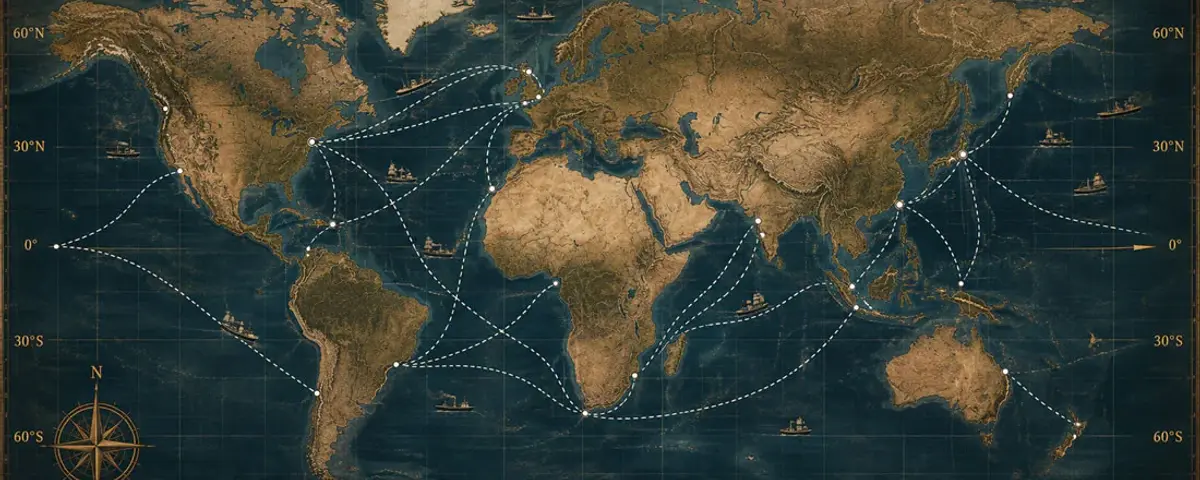
At a Glance
- Markers can be named, filtered, moved, archived and deleted.
- Coordinate mode shows the location under the pointer.
- A marker is neither a port nor a route.
When a marker is useful
Use a marker for a port you want to inspect later, a location mentioned in a rumour or a possible future connection. Do not use it to move a vessel; use the route planner for that.
Place a marker
- Open Navigation markers.
- Choose Place marker to activate placement mode.
- Move the map to the intended region.
- Click the exact point once with the left mouse button.
- Enter name, optional note, category and status, then save.
Move, archive or delete
- Select the marker on the map or in the list.
- Choose Move marker before clicking the new location.
- Archive it if you want to retain the note without treating it as active.
- Choose Delete and confirm to remove it permanently.
Read coordinates
Enable coordinate mode and move the pointer over the map without holding a button. Latitude and longitude describe the pointer position and do not trigger any game action.