GLOBAL FLEET & TRADE · HANDBOOK
World Map and Map Layers
The world map is the spatial workspace for ports, vessels, routes, customs offices and adventure or rumour hints created by the game. Layers control visibility only.
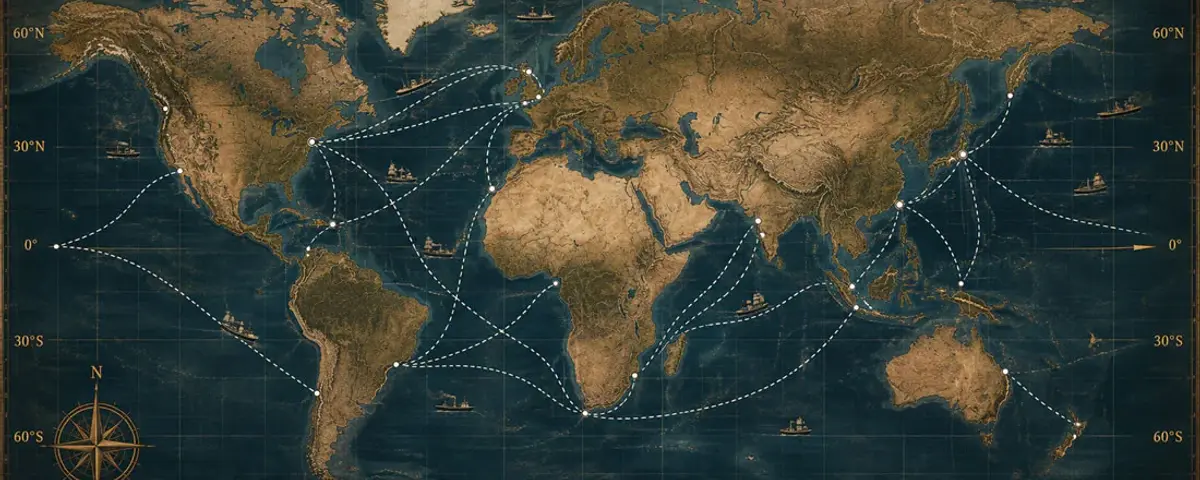
At a Glance
- Layers never delete game data.
- Drag to move the view; use the mouse wheel to zoom.
- Click a visible object to open its information card.
Move the map with the mouse
- Place the pointer on empty map space, not on an icon.
- Hold the left mouse button.
- Move the mouse; the map follows the movement.
- Release the button at the desired view.
- Roll the wheel forward to zoom in and backward to zoom out.
Select objects
Click a port, vessel, route or customs office. Its information card appears on the right. Clicking another object changes the selection; clicking empty map space clears it.
Map layers
| Layer | Visible content | When switched off |
| Ports and city names | City points, port anchors and labels. | Only the display is hidden. |
| Active routes | Lines of current voyages. | Voyages continue normally. |
| Own vessels | Positions of your fleet. | Vessels remain in place. |
| Game markers | Rumour and adventure markers created by the game. | The underlying assignment remains active. |
| Coordinate grid | Latitude and longitude. | Only the grid disappears. |
| Globe | Three-dimensional overview. | The flat map remains available. |
Reset the view
Open the layer panel and choose Reset layers. This restores standard visibility without deleting routes, markers or economic data.